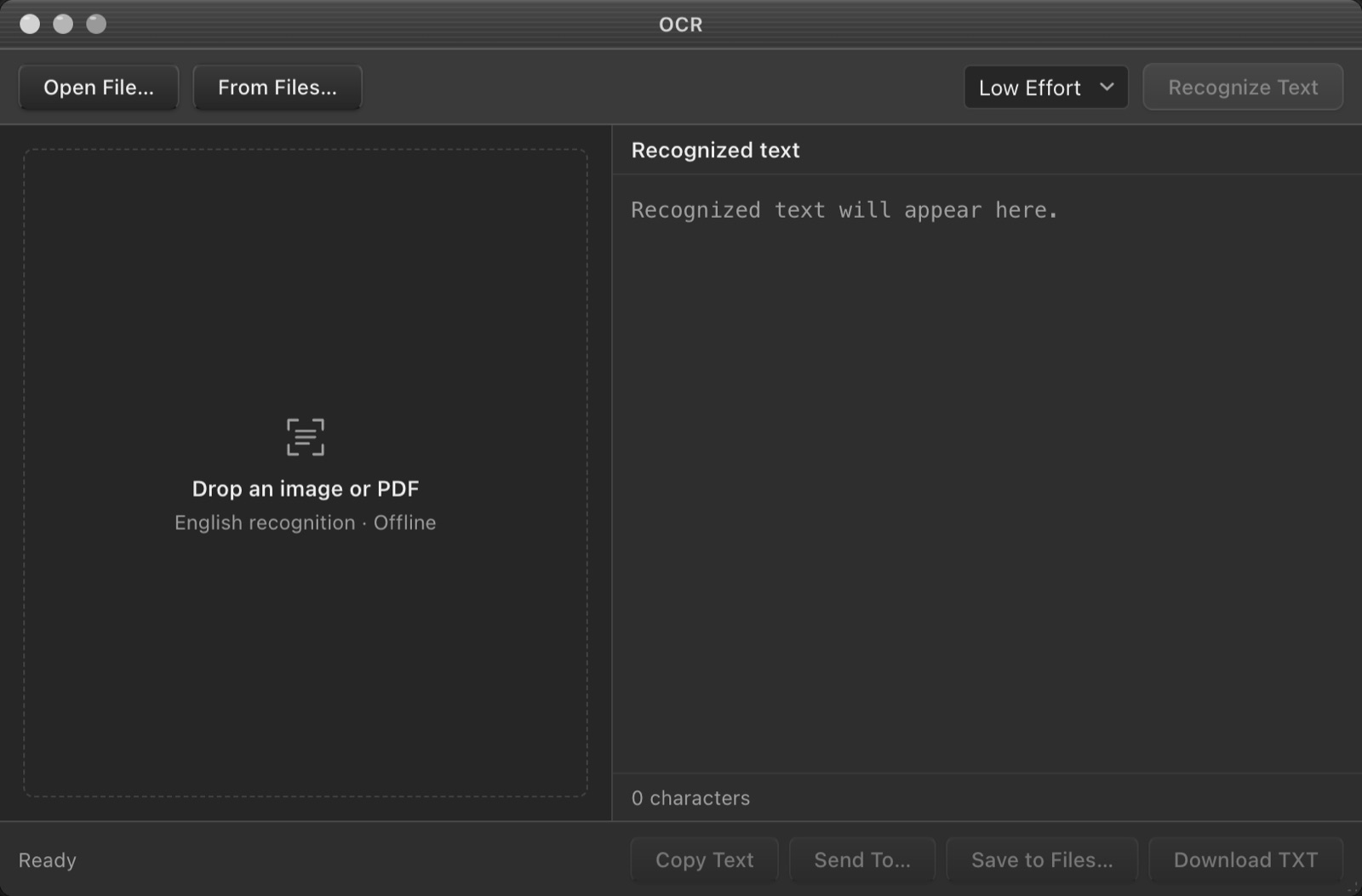
When text is stuck in a picture, OCR reads it back out. Here’s how to do it without uploading the picture to a website.
Step by step
Take the screenshot: press ⌘ Shift 4 and drag over the text. Your Mac saves it to your Desktop.
Open OCR in DiverseConnect and click Open File…, then pick the screenshot. You can also drop it onto the window. PNG, JPEG, WebP and PDF scans all work.
Choose Low Effort for a clean screenshot, or High Effort for a photo or small, hard-to-read text. Then click Recognize Text.
The text appears in the box. Click Copy Text, or Download TXT to keep it as a file.
Questions
Is the screenshot uploaded?
No. The text is read on this computer, offline.
Which languages can it read?
English.
Can it read a scanned PDF?
Yes. Open the PDF the same way and click Recognize Text.
Does OCR need the internet?
No. OCR is part of DiverseConnect, which works with the internet switched off, so it keeps working on a plane, in a dead zone, or when the Wi-Fi is down.