Getting started.
How DiverseConnect works, one topic at a time. Each part stands on its own, so skip to what you need.
Read help.dc, the Help & Tips page inside the app, word for word.
The desktop
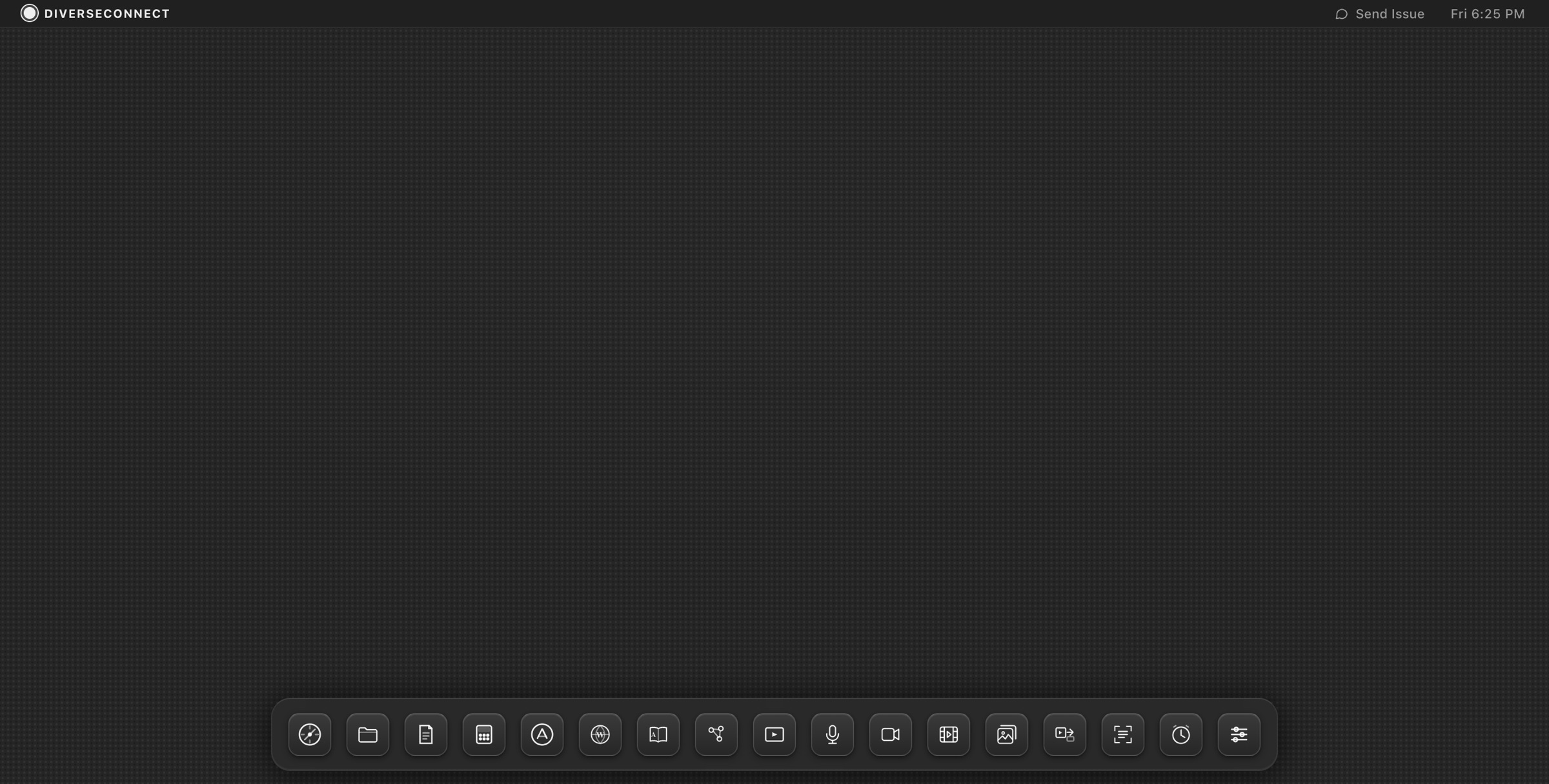
Open DiverseConnect and you’re on its desktop. The dock along the bottom holds your apps, and the menu bar runs along the top.
- Click an app in the dock to open it. Click it again to tuck it away.
- Drag a window by its title bar. Drag the bottom-right corner to resize it.
- Double-click a title bar to fill the screen, and again to go back.
- The red, yellow and green lights close, minimize and maximize.
Finding apps
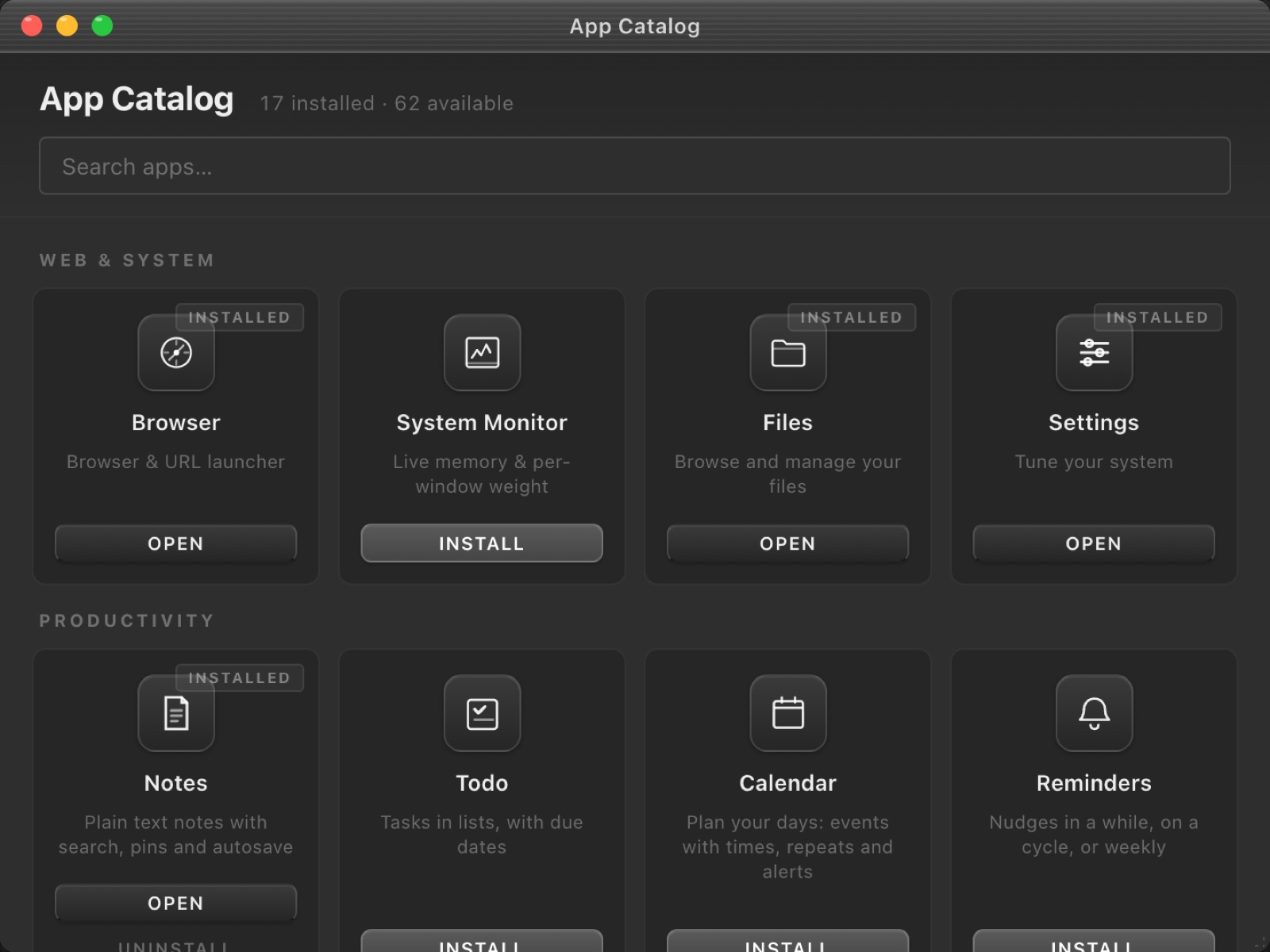
All 84 apps are in the App Catalog. Install the ones you want in your dock, and remove the ones you don’t: almost everything is removable.
Your files
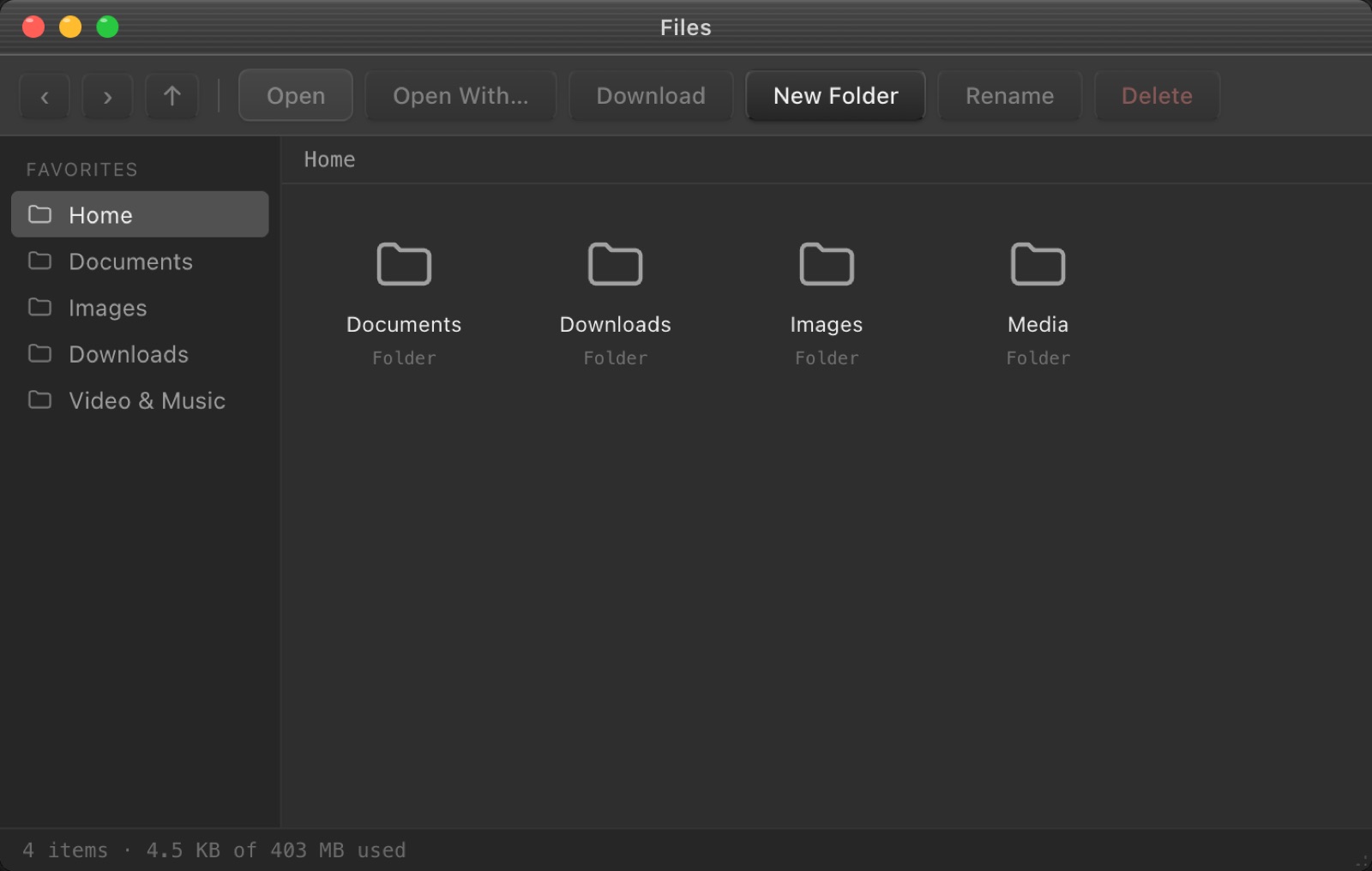
Files is DiverseConnect’s file browser. What you make stays on your computer, and every app can use it.
Most apps also have Send to…, which passes text or a picture straight to another app, like a photo from Photo Editor into Video Editor.
Settings
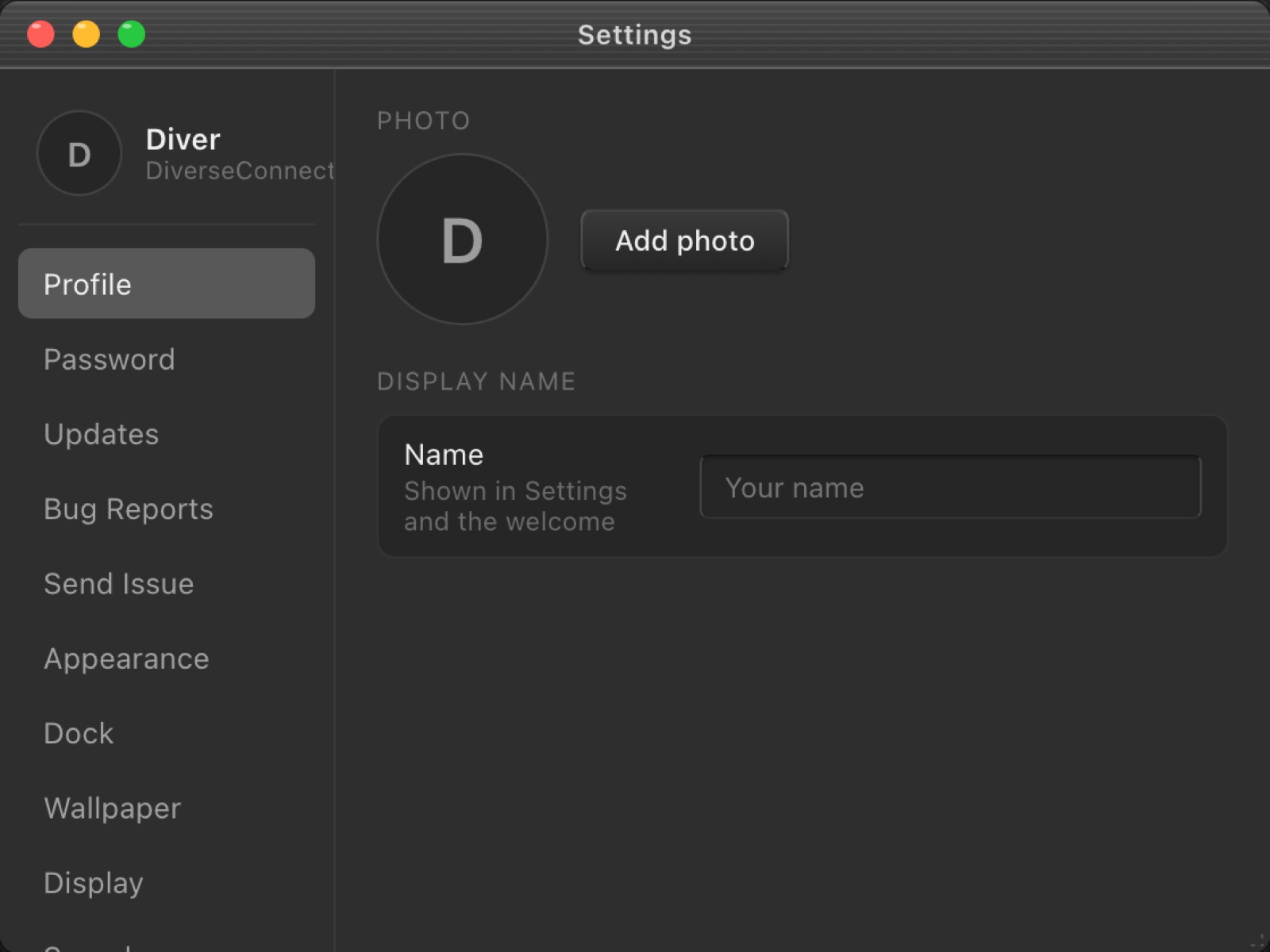
Open Settings from the dock or the DIVERSECONNECT menu. That’s where you change the look, updates, notifications, the password lock, modules and bug reports.
Password lock
- Open Settings → Password.
- Type your password twice.
- Tick I understand and turn it on. DiverseConnect restarts, locked.
What DiverseConnect stores is then kept encrypted, and only your password opens it.
There’s no way to recover a forgotten password. That’s what keeps it safe, so write it down somewhere you trust.
Updates
In Settings → Updates you choose how updates work:
- Ask First: DiverseConnect tells you when there’s an update and waits for your yes.
- Automatic: updates install by themselves (it asks you to confirm before turning this on).
- Never Ask: no reminders. You can still check by hand any time.
Modules
Big add-ons go in Settings → Modules. You choose where each one is stored. See what’s coming.
How-to guides
How to Sign a PDF on a Mac Without Uploading It
Something wrong?
Click Send Issue in the menu bar to send a question, a problem or an idea. It tells you it’s going online before anything is sent.
If DiverseConnect hits a bug, it keeps running and shows a note with what happened. It asks before sending anything.