Most “sign a PDF” sites want you to upload the document first, and some want a credit card before you can download it. Here’s how to do it on your own computer instead.
Step by step
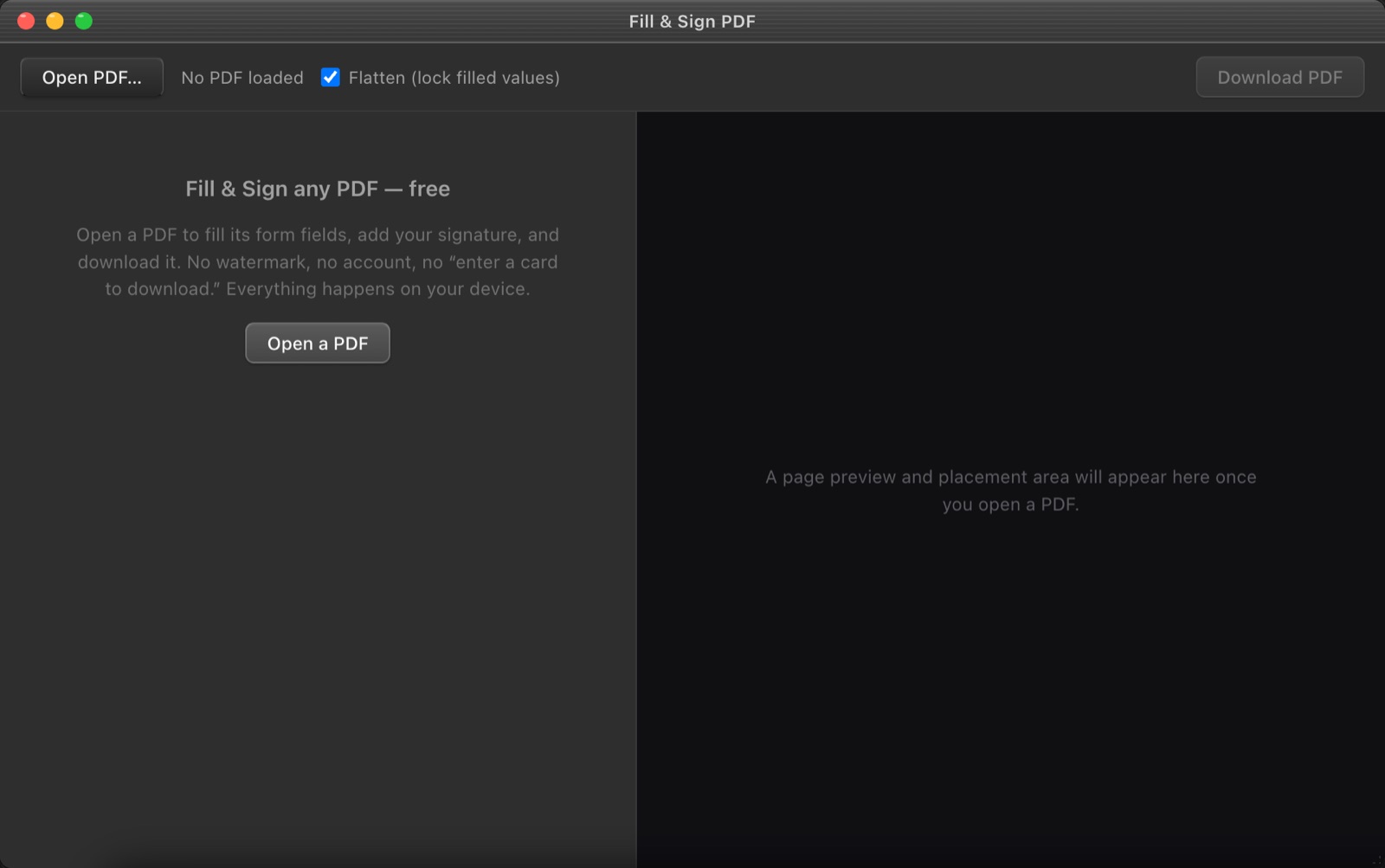
Open Fill & Sign PDF in DiverseConnect and click Open PDF…, then pick your PDF.
If the PDF has form fields, they’re listed on the left under Form fields. Type in each one. (A flat or scanned PDF has none, and you can still sign it.)
Under Signature, draw your signature with your mouse or trackpad, then click Add signature → page.
Drag the signature to where it goes on the page. For a date or your initials, type it under Text stamp, click Add text → page, and drag that into place too.
Leave Flatten (lock filled values) on so the filled-in values can’t be changed later, and click Download PDF. The signed PDF goes to your Downloads folder.
Questions
Is my PDF uploaded anywhere?
No. DiverseConnect can’t reach the internet, so the PDF never leaves this computer.
Can I sign a scanned PDF?
Yes. A scanned or flat PDF has no form fields, but you can still add your signature and text and drag them anywhere on the page.
What does Flatten do?
It locks the filled-in values into the page, so they show the same everywhere and can’t be edited by whoever opens it next.
Does Fill & Sign PDF need the internet?
No. Fill & Sign PDF is part of DiverseConnect, which works with the internet switched off, so it keeps working on a plane, in a dead zone, or when the Wi-Fi is down.